
Why I create presentations in HTML
In this blog post, I want to share my experience and tips. This is not a tutorial, so please refer to the reveal.js docs to find out more on how to use it. If you are interested in what the result looks like, check out my latest talk from APEX World 2025: APEX UX: treat your users as you like to be treated. Some people asked me what I use to create my slides, so I thought I should blog about it.
Why?
#In short:
- Versioning
- Minimalism
- Productivity
At my previous job, we had a corporate PowerPoint template that we had to use. At United Codes, we don’t have one, so I thought to use my freedom to try out something new.
Versioning
#I switched because I was in favor of using a text file, which I can easily version. I usually do talks at multiple conferences, so they naturally evolve. With Git, it is super easy to do commits to keep track of the changes.
After a conference, I can now save the state with a Git tag and start changing the slides with my adjustments. Before, I always had plenty of copies of the same presentation.
Productivity and Minimalism
#I like to keep things simple. Presentations should mainly focus on the content. I am not Apple, where the presentation is so well crafted that it is entertainment by itself. The people come to my presentation because they would like to learn something. So I want to spend my time on the content and not on aesthetics.
PowerPoint is a mighty tool. You have so many tools to change any aspect of typography, add 3D effects to text, add shadows and reflections to images, animate things, and so on. But does that really make the presentation better? Many corporate templates are so visually overloaded with every detail of the branding that they are distracting.
In VS Code, where I edit my slides, I don’t have a what you see is what you get editor. I have a simple text file with HTML and CSS and a browser that live reloads to show me the output. I can change text size and line height pretty easily by adding classes. Other than that, I have a base CSS file that gives me a nice and clean look and feel. This is enough to make my slides look appealing.
I noted that I am much more productive with that approach. I don’t worry about making things pixel perfect or playing around with too many options. My code editor is distraction-free, and I can just write down the content.
How does the HTML look?
#With reveal.js, each slide is a <section>. Use <h2> for the title. The content will mostly be <div>’s, <p>’s and <ul>’s. For media use, <img>’s, etc. For common styles, I use classes like flex (display next to each other), line-height-2xl and font-2xl. I even implemented Oracle APEX Universal Theme classes like u-danger-text to highlight important things. Specific styles, like image width, can just be added inline.
<section>
  <h2>
    <span class="u-danger-text">Don't</span>: new page → add to navigation
  </h2>
  <div class="uc-slide-content line-height-2xl">
    <div class="font-2xl flex">
      <img
        style="max-height: 60%; width: 20%;"
        loading="lazy"
        src="./imgs/bad-navigation.avif"
      />
      <div>
        <ul>
          <li>
            This is just overwhelming, users will scroll this a lot during the
            day
          </li>
          <li>New users need to find their way around</li>
          <li>Existing users want to access things quickly</li>
        </ul>
      </div>
    </div>
  </div>
</section>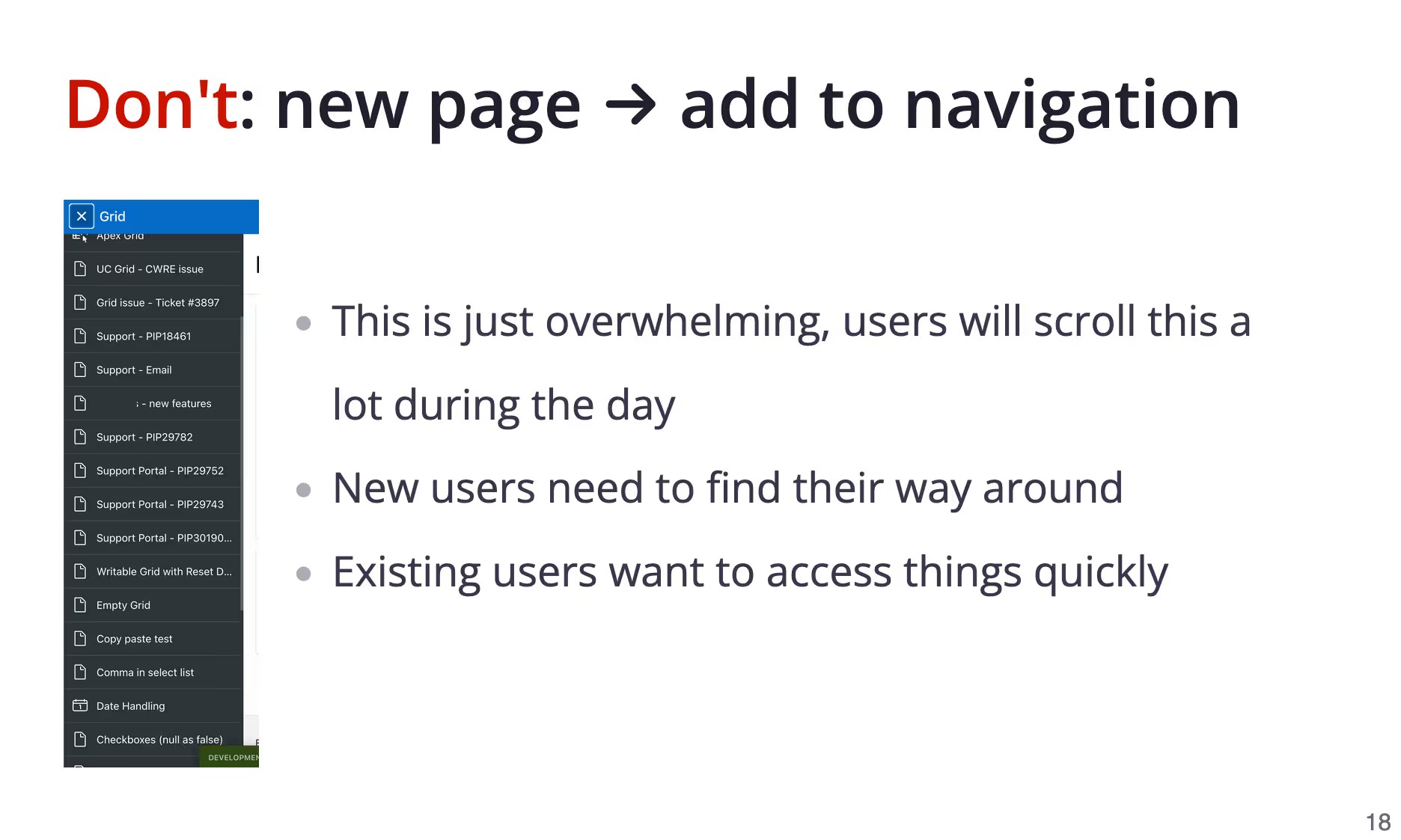
Don’t get lost with big presentations
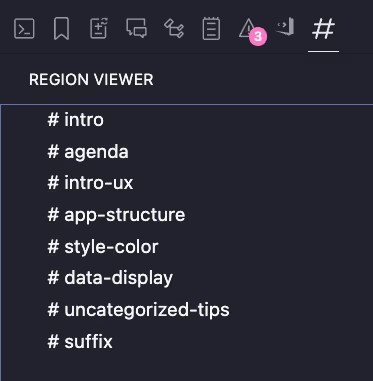
#I use these <!-- region xyz --> comments to wrap chapters:
<!-- region app-structure -->

<section>...</section>
<section>...</section>
<section>...</section>

<!-- #endregion -->
Then, in combination with the Region Viewer extension, I can easily jump between the chapters to never get lost in the presentation.
Snippets
#I maintain a set of snippets for common slide types to quickly create new slides. Then I don’t need to remember HTML structures and save time. I just use Alfred (macOS spotlight replacement) and type sn {slide type} and get the markup pasted in my editor. These are the snippets I use:
- Agenda Slide
- Chapter Slide
- Code Slide
- Image Slide
- Image and Text Slide
- List (ul) Slide
- Table Slide
- Title Slide
Benefits of having HTML slides
#I often use demos in my presentations. With PowerPoint, it is always a hassle to exit the presentation mode, switch to the right browser window, and get back to the presentation again. With HTML slides, I already present them in the browser, and thus I can just switch to a tab with the demo. When I have links in my presentation, I can just click on them, and they immediately open in a new tab.
Additionally, reveal makes the slides look great on any device. It allows you to swipe on touchscreens and even has a scroll-down mode for vertical phones, making it appear like a fancy page.
With internal linking, I can easily link to other slides. I added an event listener for the Shift + A key combination to jump to the agenda slide, where you can then jump to each chapter via a link. Reveal also allows you to press Esc to zoom out a bit and scroll through the slides from an overview.
document.addEventListener("keydown", (event) => {
  if (event.shiftKey && event.code === "KeyA") {
    Reveal.slide(2); // Jump to the agenda slide index
  }
});
At last, I like that my slides are in a structured format. You can easily copy and paste the content, and probably it has better accessibility and is indexable by search engines.
More tips
#At last some uncategorized tips that help me with my slides:
With the LanguageTool Linter extension, I can check my slides for spelling and grammar mistakes.
If somebody needs a copy of my slides in the PDF format, I can add ?print-pdf to the URL and then use the browser print dialog to create a PDF without issues. If the PDF is too big, I can compress it with GhostScript: gs -sDEVICE=pdfwrite -dCompatibilityLevel=1.4 -dPDFSETTINGS=/ebook -dNOPAUSE -dQUIET -dBATCH -sOutputFile=output.pdf input.pdf.
To minimize image size, I convert all images to the AVIF format with this command: bunx avif --input "./imgs/*.{jpg,png}" --quality 80 --effort 8 --overwrite && rm -r ./imgs/*.png || true && rm -r ./imgs/*.jpg || true (requires Bun).
Download new languages for syntax highlighting from highlightjs.org. Add them to /plugin/highlight/languages. The SQL highlighter also does a fantastic job for Oracle PL/SQL.
I can easily just copy the whole file, paste it into Claude (or any other LLM), and ask for feedback and parts that could be better phrased. (Note that I don’t let Claude write my slides; I just use it to get feedback.)
Conclusion
#This is probably not for everyone. If you are productive with PowerPoint, then stick to it. For me, this approach worked out great, and I am super happy with it. My main idea to move to this approach was version control. Now I most like how my slides are more content-driven now and how I am more productive.
Updates
#August 2026
#Over a year and a lot of talks later, two things in my setup have changed: how I jump to the agenda, and how bullet slides pick their own font size. I also now have a way to hand a deck to somebody as a single file.
Jumping to the agenda without a hardcoded index
#I now look the agenda slide up by id instead of using a fixed slide index, so it survives reordering:
document.addEventListener("keydown", (event) => {
  if (event.shiftKey && event.code === "KeyA") {
    const agendaSlide = document.getElementById("agenda");
    if (agendaSlide) {
      Reveal.slide(Reveal.getIndices(agendaSlide).h);
    } else {
      console.warn("Slide with ID 'agenda' not found.");
    }
  }
});
The agenda entries are plain links like <a href="#/intro">, pointing at chapter slides that have an id. That works because of hash: true in my Reveal.initialize. So the agenda is a clickable hub without any JavaScript, and Shift + A gets me back to it. The hint about the shortcut sits in a span with a no-print class, so it does not end up in the PDF.
List slides that size their own text
#Earlier I wrote that I set text size with classes like font-2xl. That was the one part of my workflow that still felt like the pixel-fiddling I wanted to escape: a slide with three bullets and a slide with six need different type sizes, and I picked them by eye. Now I write the markup without any size hint:
<section>
  <h2>Themes</h2>
  <div class="uc-list-slide">
    <ul>
      <li>Extracting value from your unstructured data using LLMs.</li>
      <li>Automation</li>
      <li>Enabling new interfaces</li>
    </ul>
  </div>
</section>
A bit of JavaScript measures how much text is on the slide and writes the number into a CSS variable. The important part is that it counts rendered lines, not list items, so a slide with few but long bullets still gets sized down. Then the CSS divides the available height by that count, clamped between a floor and a ceiling that tapers as the list grows. The JavaScript never sets a font size; it only measures, and the stylesheet decides.
Display the line counting JavaScript
document.addEventListener("DOMContentLoaded", () => {
  document.querySelectorAll(".uc-list-slide").forEach((slide) => {
    let count = 0;
    slide.querySelectorAll("li").forEach((item) => {
      const lineHeight = parseFloat(window.getComputedStyle(item).lineHeight);
      const lines = Math.max(1, Math.round(item.offsetHeight / lineHeight));
      count += lines;
    });
    slide.style.setProperty("--count", count);
  });
});
Display the CSS
.uc-list-slide > ul {
  --min-fs: 2rem;
  --max-fs: 3.3rem;
  --text-space: 77cqh;
  --fs-factor: 0.35;

  display: flex;
  flex-direction: column;
  justify-content: space-evenly;
  height: 100%;

  font-size: clamp(
    var(--min-fs),
    calc(var(--text-space) / var(--count) * var(--fs-factor)),
    calc(var(--max-fs) * (1 - (var(--count) * 0.02)))
  );
  line-height: clamp(
    var(--min-fs),
    calc(var(--text-space) / var(--count) * var(--fs-factor)),
    calc(var(--max-fs) * (1 - (var(--count) * 0.02)))
  );
}
Dividing offsetHeight by lineHeight only works as a line count because the CSS sets line-height to the same value as font-size. There are also xs, sm, lg and xl variants that only change the CSS variables, but I never use them since the default works in most cases.
Shipping a deck as a single HTML file
#A PDF is fine as an archive, but it loses the links, fragments and some layout. What I want to hand over is something that still is the presentation. So I wrote a script that produces exactly one self-contained HTML file per deck:
bun run share                              # default target
bun run share 2026-ai-workshop             # a whole folder
bun run share 2025-security/index.html     # a single deck
In short, it:
- inlines stylesheets and scripts, including
url(...)references inside the CSS - turns
src,data-src(reveal’s lazy loading), background images/videos and posters into data URIs - never touches an
href, so agenda links stay reveal navigations instead of page reloads - writes everything into one flat folder with an
index.htmllinking all decks
The part I would not want to be without is stripping HTML comments. All the <!-- region xyz --> markers from earlier, every slide I commented out instead of deleting and every note to myself would otherwise travel to whoever gets the file. Stripping runs before inlining, so an image that only a commented-out slide references never gets embedded either.
Display the comment stripping function
function stripHtmlComments(html) {
  const blocks = /<(script|style)\b[^>]*>[\s\S]*?<\/\1>/gi;
  let count = 0;

  const strip = (text) =>
    text.replace(/<!--([\s\S]*?)-->/g, (match, body) => {
      if (/^\[if\b/i.test(body.trim())) return match;
      count++;
      return "";
    });

  const parts = [];
  let last = 0;
  let block;
  while ((block = blocks.exec(html))) {
    parts.push(strip(html.slice(last, block.index)), block[0]);
    last = block.index + block[0].length;
  }
  parts.push(strip(html.slice(last)));

  return { html: parts.join(""), count };
}
It skips <script> and <style> bodies, because a <!-- inside JavaScript or CSS is not an HTML comment. One more gotcha: an inlined script breaks if the JavaScript contains the string </script, so I escape it to <\/script, which is equivalent JavaScript.
The output folder is wiped and rebuilt on every run, so I can zip it and send it. Each file opens with a double click, with no server and no asset folder. This is also where the AVIF conversion from further up pays off twice, since every image ends up base64-encoded in the file.