
Mixing APEX Universal Theme Colors with the mix-color function
Universal Theme Colors
#Universal Theme is using CSS variables under the hood to define the colors used in the theme. Switching theme style (like from Vita to Vita Dark or Redwood Light) simply loads different values for these CSS variables. You can learn more about CSS variables in APEX in my recent UC Live session.
The palette offers various colors like text color, accent colors like primary, success, danger, etc. One of my favorites is the variable --ut-component-text-muted-color which is great for typography to make text less prominent, as it is just a lighter version of the default text color. For the accent colors, there are similar ones like --ut-palette-primary-shade which is a brighter version of the primary color.
But on some occasions they might not be precisely what you want, or there is simply no lighter or darker version of the color you want to use.
Mix-color function
#The straightforward solution would be to just handpick a custom color with a color picker tool. It works, but it’s not the most elegant solution, as when you modify the original color or switch the theme style, your custom color will stay the same and might not fit anymore.
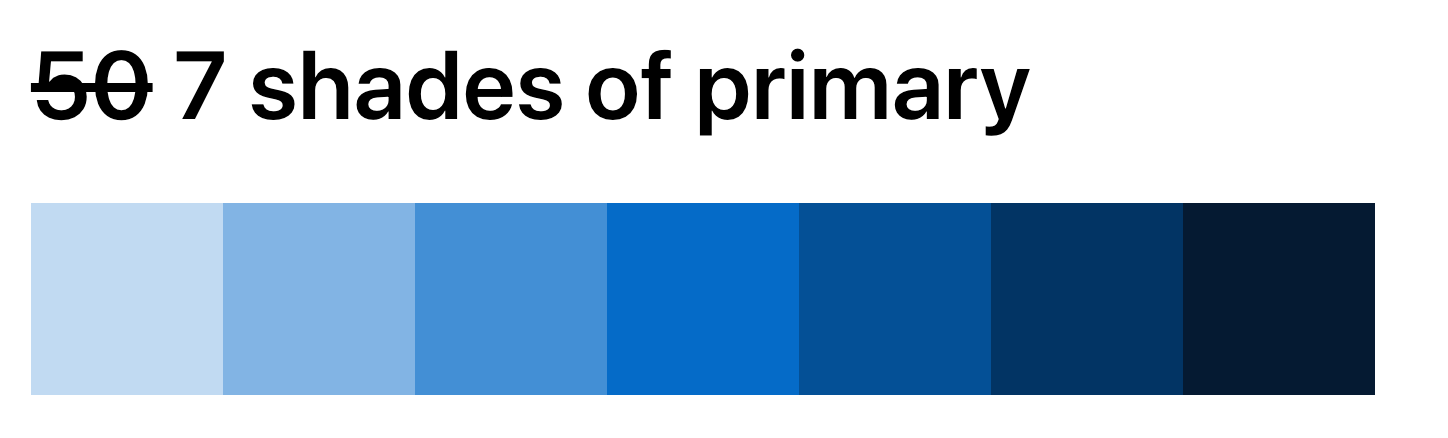
CSS has improved tremendously in the last few years. Fortunately, CSS now offers the color-mix function that allows us to mix two colors together with a specified ratio. This means we can take the original color from the Universal Theme and mix it with transparent, white or black to create a lighter or darker version of the original color. If the theme color changes, our custom color will automatically adjust as well, as it is based on the original color.
The syntax is straightforward: you pass the color space as the first parameter (usually srgb), then the first color with an optional ratio, and then the second color with an optional ratio.
:root {
  --primary-lightest: color-mix(in srgb, var(--ut-palette-primary), white 75%);
  --primary-light: color-mix(in srgb, var(--ut-palette-primary), white 50%);
  --primary-lighter: color-mix(in srgb, var(--ut-palette-primary), white 25%);

  --primary-darker: color-mix(in srgb, var(--ut-palette-primary), black 25%);
  --primary-dark: color-mix(in srgb, var(--ut-palette-primary), black 50%);
  --primary-darkest: color-mix(in srgb, var(--ut-palette-primary), black 75%);
}
Link underline color
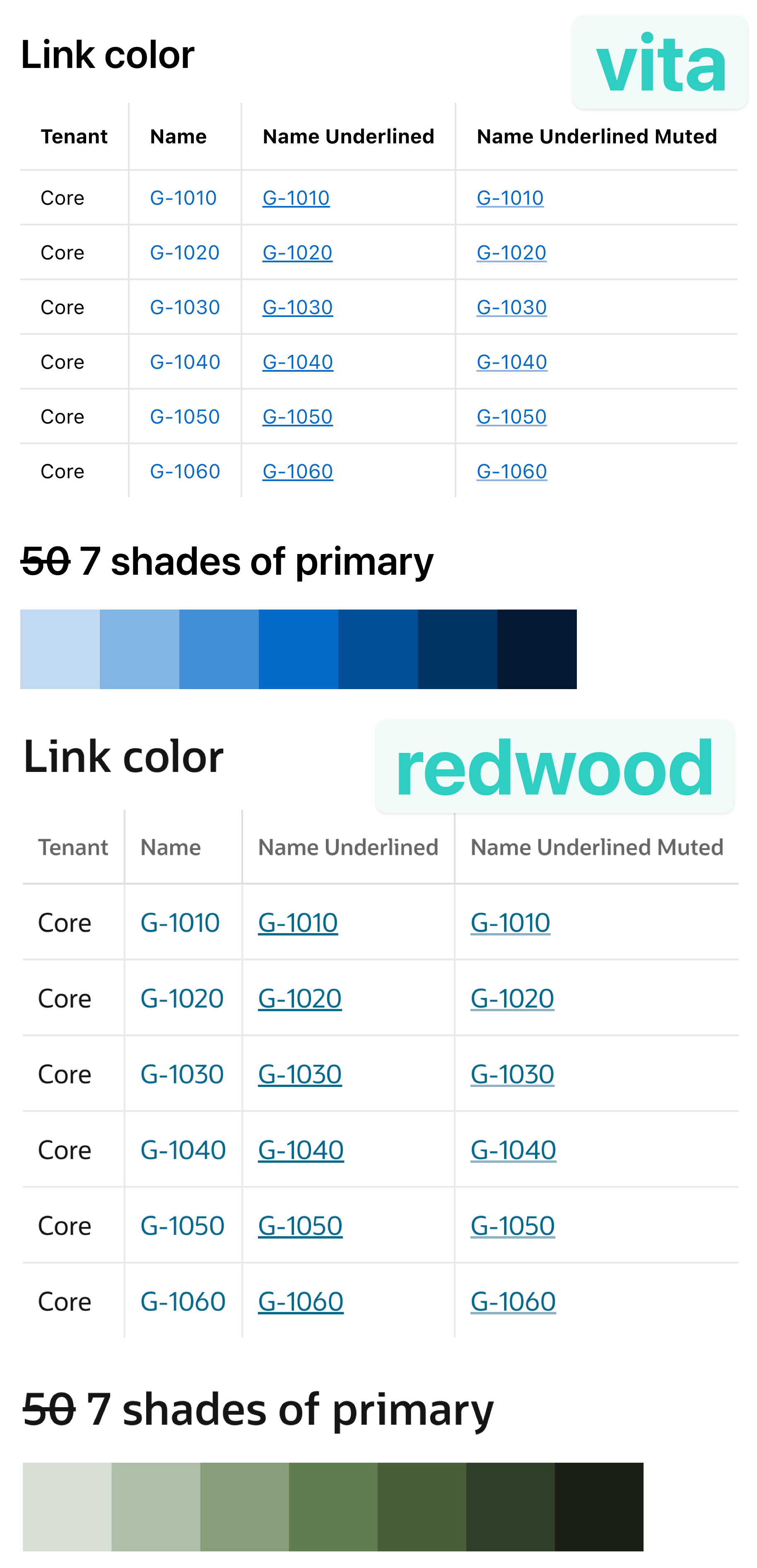
#Here’s a practical example: I initially looked for doing this because I wanted to highlight links in a report. Typically in APEX the links don’t have an underline, which makes it challenging to distinguish them from regular text. But I noticed the underlines are also pretty harsh on the eyes, so I wanted to make them a bit lighter. With the color-mix function, I then created a lighter version of the link color. And on hover I actually use the default color to show interactivity.
.custom-link {
  --muted-color: color-mix(in srgb, var(--ut-link-text-color), transparent 45%);
  text-decoration: underline;
  text-decoration-color: var(--muted-color);
}
And even when we switch the theme style, the link underline color will automatically adjust as it is based on the original link color.
Conclusion
#The color-mix function is a powerful tool to create custom colors based on the original Universal Theme colors. It allows us to create lighter or darker versions of the colors without having to manually pick a color with a color picker tool.
In theory you could also mix two different theme colors together to create a new color, but I would say there is not much use case for this, and arbitrary color blending rarely produces visually appealing results.
If you want to play around with my use case, you can see it in action and modify it in the APEX Template Studio.